
🤖 1der Recommendations
AI-driven optimisation engine that surfaces targeted campaign actions across Efficiency, Pacing, and Incrementality — each with estimated impact and one-click approval.
Overview
Reviniti › 1der Recommendations
1der Recommendations is 1DS proprietary AI-driven optimisation engine. It continuously analyses your active campaigns and surfaces specific, targeted actions to help you improve media performance. Each recommendation tells you exactly what to change, how many campaigns or keywords are affected, and what the estimated impact is - so you can make faster, more confident decisions.
Recommendations are organised into three major categories: Efficiency, Pacing, and Incrementality. Within each category, they are further grouped by the aspect of the campaign they address - such as bid management, keyword harvesting, budget allocation, or inventory availability. You review recommendations in one place and act on them individually or in bulk.
Page Layout
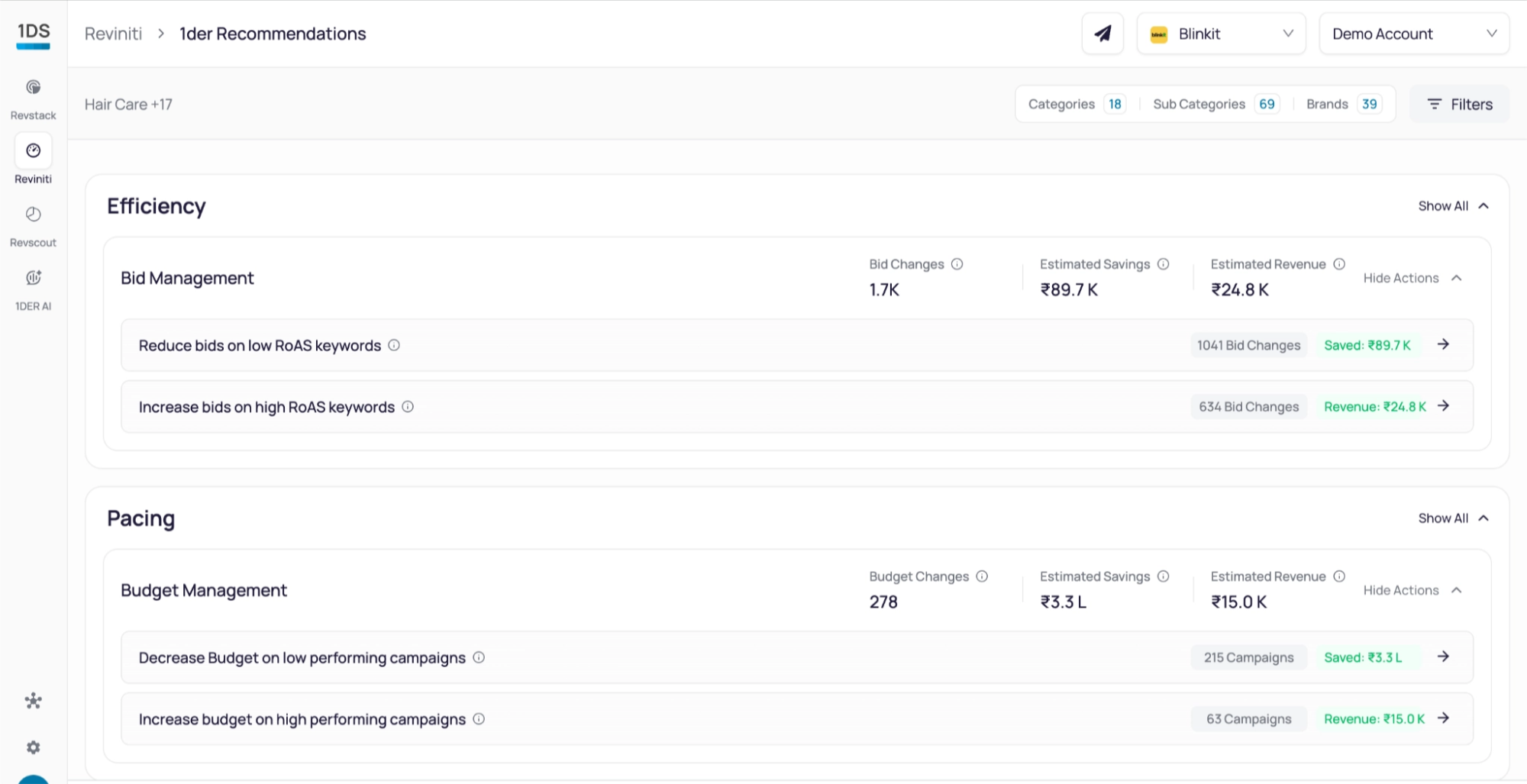
The 1der Recommendations page is a single scrollable view. At the top, summary metrics show you the total number of active recommendations and their estimated aggregate impact. Below that, recommendations are displayed in expandable groups organised by groups and sub-groups.
The page includes the following controls:
- Filters - Narrow recommendations by Category, Sub-category, or Brand
- Date range - Set the analysis window for the underlying data
- Channel selector - Switch between connected ad platforms
- Search - Find a specific recommendation by keyword
- Column visibility - Show or hide columns in the recommendations table
- Bulk actions - Select multiple recommendations and approve or reject them together
📌 Recommendations shown on the page are live and reflect your current campaign data. The system updates them continuously as your campaigns run
Recommendation Categories
Recommendations are divided into three categories. Each category contains multiple sub-groups that address a specific aspect of campaign management.
a. Efficiency
Improve cost efficiency and return on Ad spends
Efficiency recommendations focus on ensuring optimised budget spends. They identify campaigns and keywords where bid adjustments or targeting changes can reduce wasted spend or unlock more return.
| Recommendation Group | What it optimises |
|---|---|
| Bid Management | Recommends bid increases or decreases on specific keywords based on ROAS performance and CVR signals |
| Brand Share of Voice |
Flags keywords where your brand's share of voice is at risk or below target. Recommends actions to defend or grow your brand's visibility for relevant search terms |
b. Pacing
Keep spend on track throughout the month
Pacing recommendations help you manage how the budget is consumed over time. They surface signals when spend is running ahead of or behind the expected trajectory, and suggest corrective actions before the month ends.
| Recommendation Group | What it optimises |
|---|---|
| Budget Management | Identifies campaigns that are overpacing or underpacing relative to the current date. Recommends budget adjustments to align actual spend with your monthly plan |
| Out of Stock & Low Stock SKUs | Flags campaigns that are spending on products with low or zero inventory. Recommends pausing or reallocating spend to avoid wasted budget on products that cannot convert |
c. Incrementality
Surface gaps where additional investment generates new returns
Incrementality recommendations identify opportunities to expand performance beyond current activity. They surface gaps in your keyword coverage, targeting strategy, or product mix where additional investment is likely to generate new returns.
| Recommendation Group | What it optimises |
|---|---|
| Keyword Harvesting | Analyses search term reports to identify high performing terms that are not yet in your keyword targets. Recommends adding them as exact or phrase match keywords to capture proven demand more efficiently |
| Keyword Targeting | Reviews existing keyword match types and bid strategies to recommend changes that increase relevance and coverage without expanding spend unnecessarily |
Recommendation Groups
Each recommendation group appears as an expandable section on the page. The group header gives you a quick summary of the overall situation, and the rows beneath it list the individual actions available.
🚧 Heads up
Some features and functionalities described on this page are still rolling out. If you don’t see something in the UI yet, it’s on the way - stay tuned.
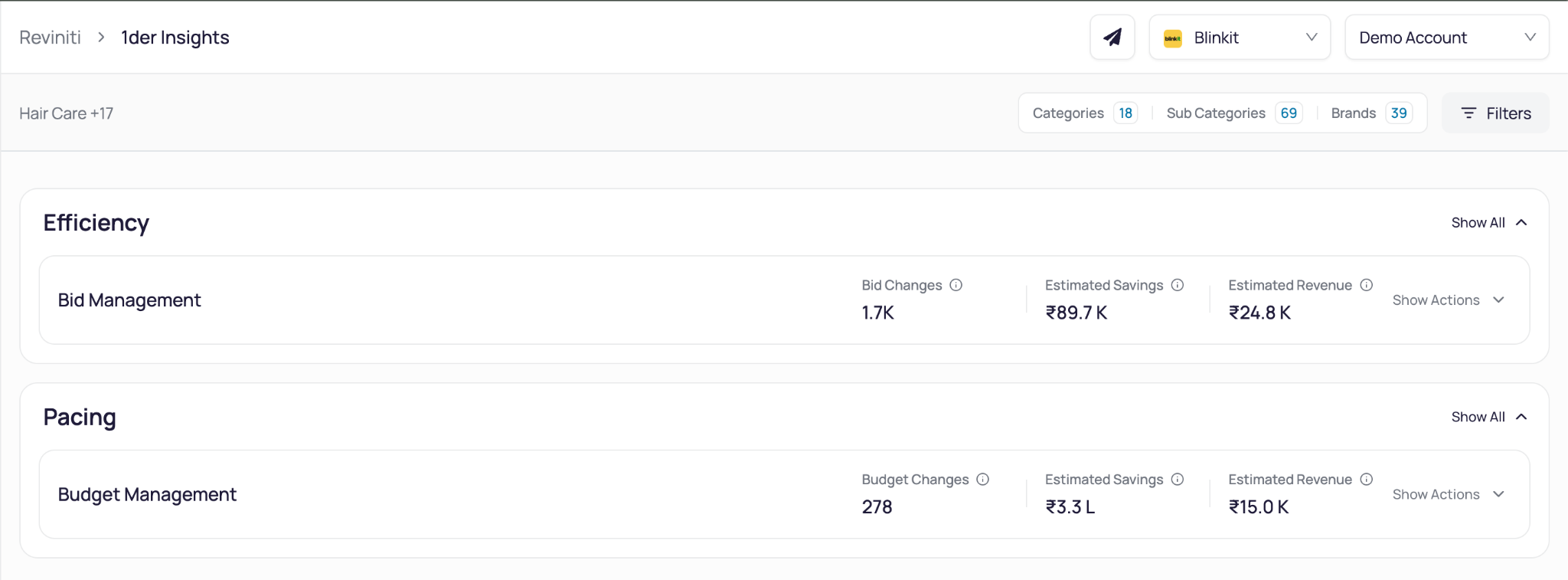
a. Individual Recommendation Rows
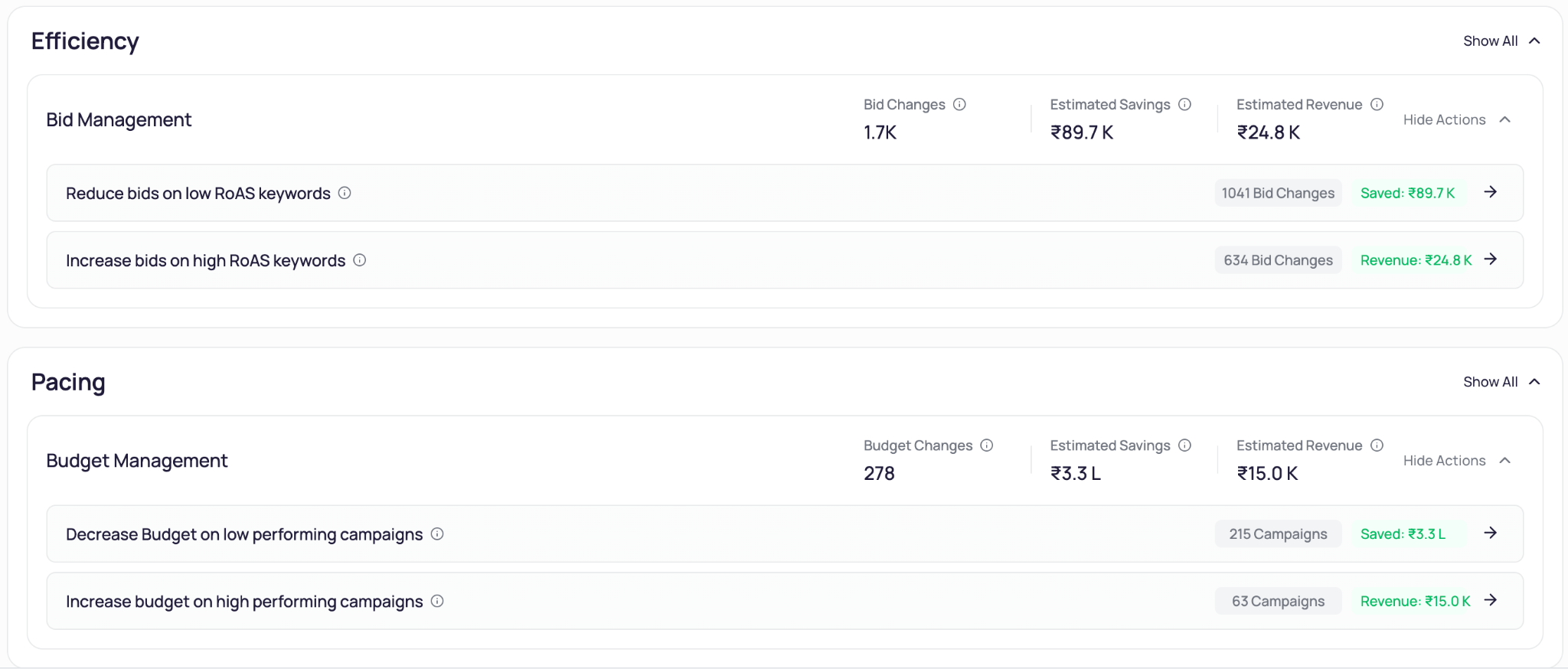
Each row within a group represents one specific recommended action. A row shows:
- The recommended action - for example, “Reduce bids on low RoAS keywords” or “Increase bids on high-CVR constrained keywords”
- The scope - how many keywords or campaigns are affected
- The estimated impact - shown as a currency value (savings or revenue uplift)
- An arrow to open the recommendation detail panel
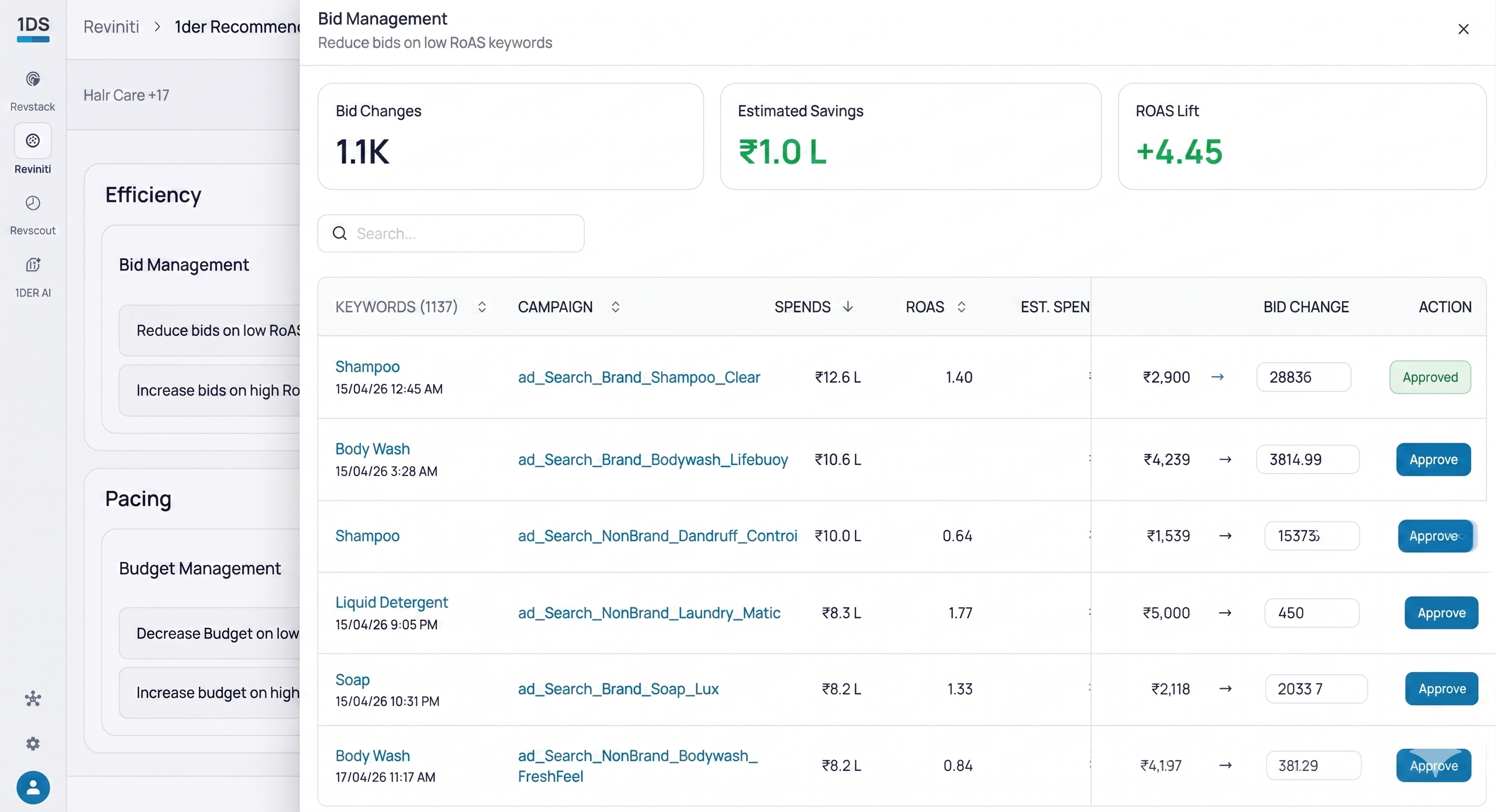
b. Recommendation Detail Panel
Clicking the arrow on any recommendation row opens a side panel with the full detail for that recommendation. The panel includes:
- The specific keywords, campaigns, or ASINs involved
- Current performance metrics and the proposed change (Spends, RoAS, etc.)
- Estimated performance metrics if recommendation is approved (Estimated Spends, Estimated RoAS, etc.)
- Individual approve and reject controls for each item within the recommendation
ℹ️ The detail panel lets you review and act on items line by line before committing. You are not required to approve or reject an entire recommendation group at once.
Recommendation Actions
a. Approving a Recommendation
To apply a recommendation, click the arrow on any row to open the detail panel, review the proposed changes, and approve the items you want to apply. Approved items are executed in your ad platform and move to the Approved tab.
b. Rejecting a Recommendation
If a recommendation is not relevant or you disagree with the suggested action, you can reject it. Rejected recommendations move to the Rejected tab and are removed from the active queue.
Bulk Actions
To act on multiple recommendations at once:
- Use the checkboxes to select the rows you want
- Choose Approve or Reject from the bulk action controls that appear
- Confirm to apply the action across all selected items
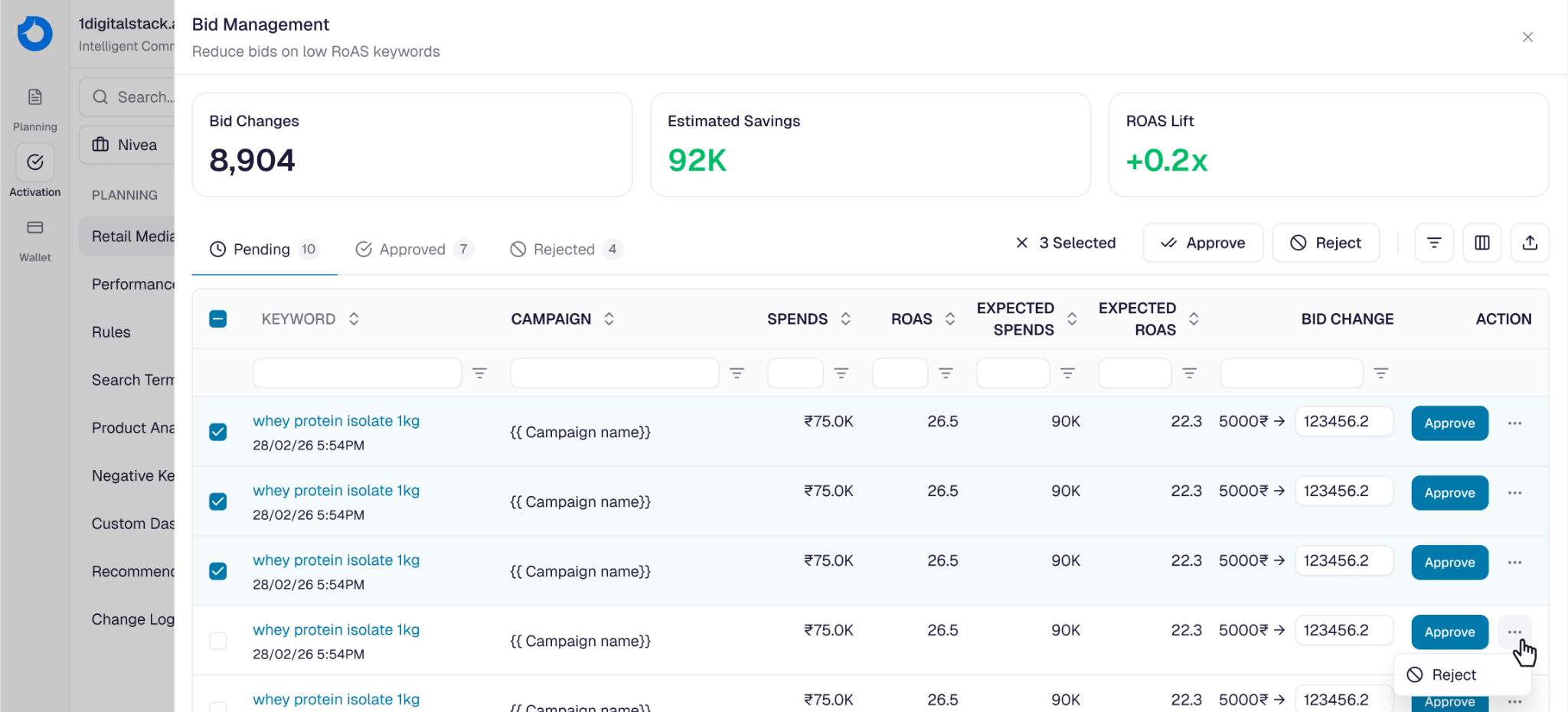
📌 You can review and edit individual recommendations before selecting them for bulk approval
Filtering and Search
Use the controls at the top of the page to focus the recommendations view:
- Category, Sub-category, Brand - Show recommendations for specific parts of your portfolio only
- Marketplace - Filter by the ad platform the recommendations apply to
- Date range - Adjust the underlying data window used to generate recommendations
- Search - Type a keyword to find specific recommendation rows
- Column visibility - Use the column toggle to show or hide metrics columns in the table
- Column filter - Filter rows within a column by value or range
Notes
- Recommendations are generated everyday and reflect live campaign data. The list updates as your campaigns run.
- The three categories - Efficiency, Pacing, and Incrementality - are fixed groupings. Sub-groups within each category may vary based on your campaign structure and the data available.
- Estimated impact values are projections based on historical performance. Actual results may vary.
- Approving a recommendation applies it to your ad platform. Ensure you have reviewed the detail panel before bulk-approving a large set of changes.