
🎯 Keyword Rank Rules - Live 3p Rank
Live keyword rank tracking and sub-daily bid automation for Blinkit campaigns — see where your keywords rank and create rules that adjust bids automatically based on position.
Overview
Reviniti › Campaign Manager › Keywords Table
Keyword Rank Rules lets you see where your keywords are ranking on Blinkit and automate bid adjustments based on live position data. The Latest Position column in the Keywords Table shows crawl-sourced rank refreshed every 30 minutes, and the rules engine can act on that data at sub-daily frequency — down to every 15 minutes.
On quick-commerce platforms, keyword positions shift multiple times a day as competitors adjust bids. Standard rules operating at daily frequency can only address position losses the next day. Rank Rules close that gap by connecting live position data directly to automated bid actions.
The page includes the following capabilities:
- Latest Position column — Shows the crawl-sourced rank for each keyword in your campaign, refreshed every 30 minutes
- Optimize Ad Rank action — A rule action that automatically adjusts bids up or down based on where a keyword ranks relative to a target you configure
- Minutes and Hourly frequency — Rules can execute every 15, 30, or 45 minutes, or at intervals from 2 to 24 hours. These options unlock when keywords are selected and Optimize Ad Rank is chosen
- Operator-driven targeting — Set your target rank using Less than, Greater than, Equals, or Between. The system determines bid direction automatically
- Built-in guardrails — Cross-campaign exclusion, 2-hour cooldown per keyword, crawl freshness checks, max bid cap enforcement, and one active rule per keyword all run automatically
Keywords Table
The Latest Position column displays the aggregated rank for each keyword in your campaign.
| What You See | What It Means |
|---|---|
| A number (e.g., 4) | Rank data from the latest crawl cycle |
| A dash ( - ) | No rank data available for this keyword |
📌 The rank shown is the best observable position for the campaign's products, aggregated across your campaign's cities. It is a representative signal, not a live mirror of every individual search
Rank Calculation
The rank is not a single raw data point. It is derived from crawl data in two steps.
Step 1: For each keyword + SKU combination, compute the MODE rank across all campaign cities.
The system looks at how a specific product ranks for a keyword across every city in your campaign. The most frequently occurring rank is taken. If two ranks tie in frequency, the better (lower) rank is picked.
Step 2: Take the MIN (best rank) across all SKUs for that keyword.
With one rank per SKU from Step 1, the system picks the best position across all products in the campaign. If any one of your products is appearing at position 3, the brand is visible at that position.
📌 The calculation resolves ambiguity in favour of the better (lower) rank — aligning with a philosophy of under-bidding over over-bidding
Creating a Rule
Step 1: Select Keywords
Filter and select the keywords you want the rule to act on. The system identifies selected keywords using their internal keyword ID.
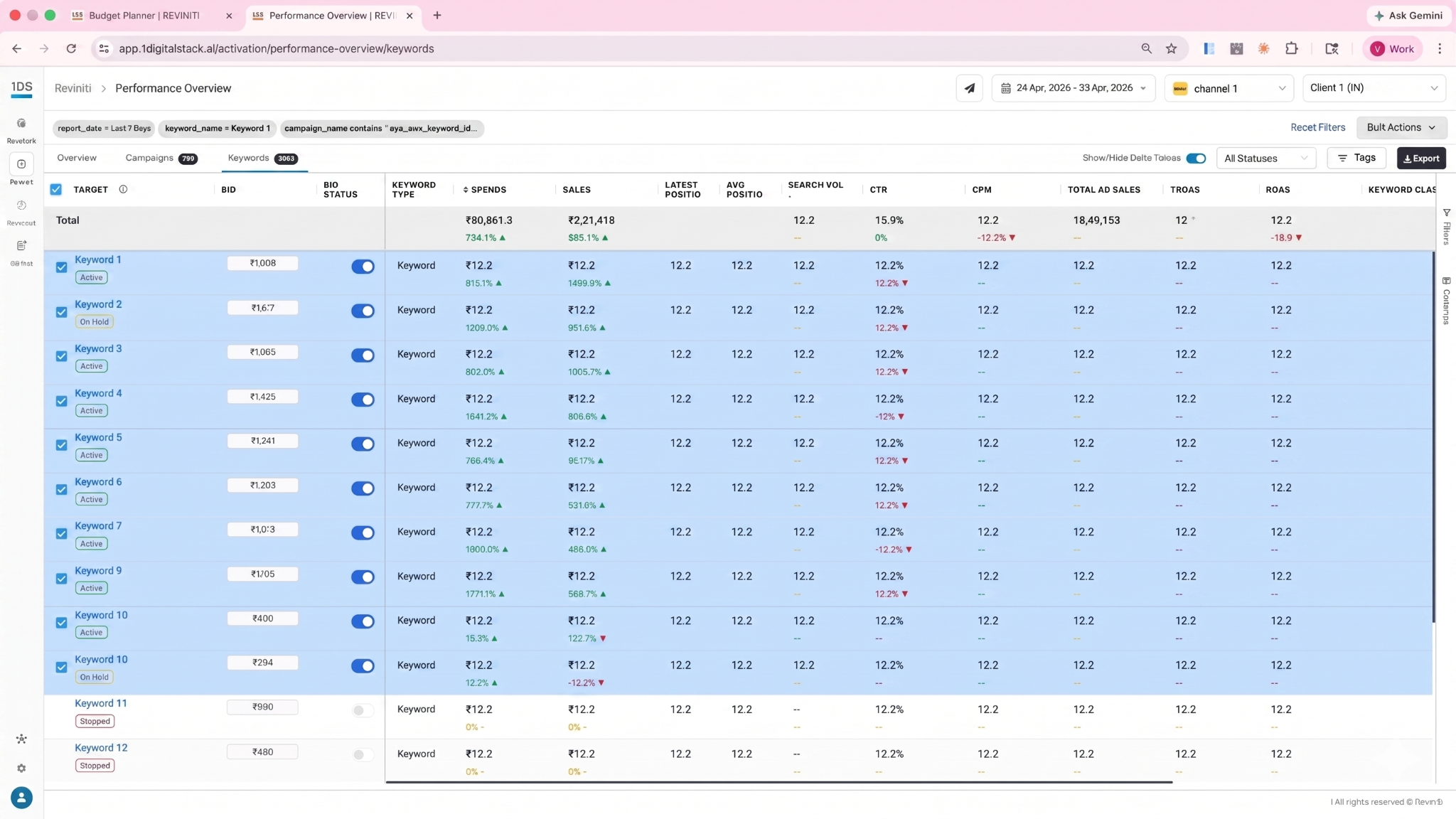
| 📌 Two conditions must both be met to unlock Minutes and Hourly frequency options: keywords must be selected AND Optimize Ad Rank must be chosen as the action. Without both, only Day / Week / Month / Year are available. |
|---|
📌 Two conditions must both be met to unlock Minutes and Hourly frequency options: keywords must be selected AND Optimise Ad Rank must be chosen as the action. Without both, only Day / Week / Month / Year are available
Step 2: Pick Frequency
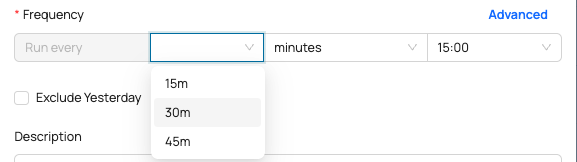

| Frequency | Options | Requires keywords? |
|---|---|---|
| Day / Week / Month / Year | Standard intervals | No |
| Hourly | 2, 4, 6, 8, 10, 12, 14, 16, 18, 20, 22, 24 hours | Yes + Optimize Ad Rank |
| Minutes | 15 / 30 / 45 mins | Yes + Optimize Ad Rank |
Step 3: Set Action, Target, and Cap
Three action types are available:
- Increase Bid % — Increase bid by a fixed percentage
- Decrease Bid % — Decrease bid by a fixed percentage
- Optimise Ad Rank — Automatically adjust bids based on where your keyword ranks relative to a target
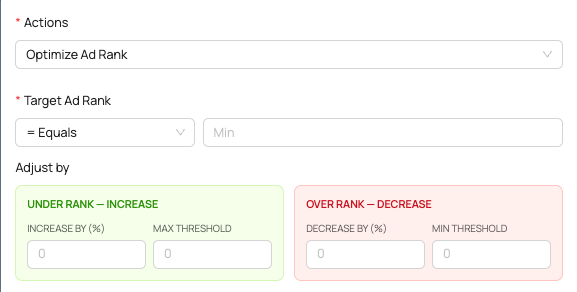
When Optimize Ad Rank is selected, you set a Target Ad Rank with an operator. The Adjust by fields react to the operator chosen.
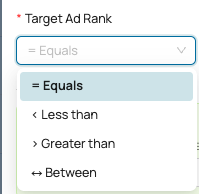
| Operator | What It Means | Bid Direction Shown |
|---|---|---|
| Less than ( < ) | Target a rank lower (better) than this value | Increase bid only |
| Greater than ( > ) | Target a rank higher (worse) than this value | Decrease bid only |
| Equals ( = ) | Target an exact rank, adjust in both directions | Both increase and decrease |
| Between | Target a rank range, adjust in both directions | Both increase and decrease |
How the engine uses the operator at execution time:
- Equals, target rank 5 — Keywords ranked better than 5 get a bid decrease. Keywords ranked worse than 5 get a bid increase
- Between 5 and 10 — Keywords ranked better than 5 get a bid decrease. Keywords ranked worse than 10 get a bid increase. Keywords already within the range are skipped
Step 4: Save
When you save, the system checks if any selected keyword already has an active rule in this campaign. If a conflict is found, a warning appears on the modal listing the clashing keywords. Those keywords are skipped and the rule is created for the remaining keywords.
📌 Only one active rule per keyword per campaign is allowed

Rule Execution
Once saved, the rule runs at the scheduled frequency. At each tick, for every keyword, it runs through 6 checks in order. All 6 must pass for a bid change to happen.
| # | Check | What It Asks | If It Fails |
|---|---|---|---|
| 1 | Cross-campaign exclusion | Does another campaign of the same client already hold the target rank? | Skip. Brand already has that position |
| 2 | Cooldown | Has it been at least 2 hours since the last bid action on this keyword? | Skip. Wait for the window to pass |
| 3 | Crawl freshness | Has the crawl run a new cycle since the last action? | Skip. Data has not changed |
| 4 | Rank data exists | Is there a rank value for this keyword right now? | Skip. Nothing to evaluate |
| 5 | Rank check | Is the current rank outside the target range? | Skip. Already at target |
| 6 | Bid below cap | Is the current bid below the max cap? | Hold. Cap is hit. Rule stays active but stops increasing |
📌 A rule set to run every 15 minutes does not mean a bid change every 15 minutes. It means the system check every 15 minutes and only acts when all 6 checks pass
Setting Up a Rule
- Open the Keywords Table within a Blinkit campaign. The Latest Position column shows live rank data.
- Select keywords by checking the rows you want the rule to act on. The Bulk Actions button appears.
- Click Bulk Actions > Save Rule. The Rules Modal opens. If any selected keywords already have active rules, an amber conflict banner appears.
- Select Optimize Ad Rank from the Actions dropdown. Set your operator (e.g. Between) and target values (e.g. 5 and 10).
- Choose a frequency. Minutes and Hourly options are now visible. Select Hourly, pick an interval (e.g. 4 hours), and set a start time (e.g. 10:00 AM).
- Review the execution preview — the modal shows exactly when the rule will run each day.
- Click Save. The system validates, generates the schedule, and creates the rule. A confirmation toast shows how many keywords were applied and how many were skipped.
Troubleshooting
Run through these in order if a rule is not firing. Each failed check stops the ones below it from running.
- No keywords selected — For Optimize Ad Rank rules, keywords must be selected before the rule can evaluate.
- Cross-campaign exclusion — Another campaign may already be at or better than your target.
- In cooldown — Default is 2 hours since the last action on that keyword.
- Crawl not refreshed — Pipeline has not updated since the last action.
- Crawl stale — Last successful crawl is older than expected.
- Already on target — Rank is within the operator range you configured.
- Bid at cap — Rule is holding, not deactivated.
- No rank data — Keyword may not be in the crawled set, or aggregation has not run yet.
Notes
- Cooldown is 2 hours between bid changes per keyword per campaign. It is tied to the keyword + campaign, not the rule itself. Deleting, recreating, or editing a rule does not reset the cooldown.
- Cross-campaign exclusion applies across all campaigns for the same client targeting the same keyword. If another campaign already holds a rank equal to or better than your target, the rule skips. This prevents two campaigns from the same client bidding against each other.
| Your Rule Target | Another Campaign Holds | What Happens |
|---|---|---|
| Rank 3 | Rank 2 | Skip. Brand already visible at rank 2 |
| Rank 3 | Rank 5 | Proceed. Other campaign is worse |
| Rank 3 | No other campaign | Proceed |
- Rank Rules are currently available for Blinkit campaigns only.
- The Latest Position column rank is aggregated across campaign cities — it is a representative signal, not a per-city or per-search live mirror.
- Estimated impact values are not shown for rank rules. The bid adjustment amount is determined by the percentage you configure, applied when the rank check passes.