
⏯️ Day Parting
💡 Stop paying for ads while your customers are asleep.
Schedule-based automation that pauses and resumes campaigns during the hours you define — so spend follows your customers' active times, not the clock.
Overview
Day Parting is Reviniti's scheduling automation for pausing and resuming campaigns based on the hours you choose. Instead of manually stopping and restarting campaigns every day across platforms, you configure pause windows once and Reviniti handles the rest — moving campaigns into a paused state during your defined windows and reactivating them automatically when those windows end.
What makes Day Parting useful is that it turns a repetitive daily chore into a set-once rule. Rather than logging into each marketplace to stop ads during low-conversion hours and remembering to switch them back on, you define the schedule a single time and let it run — freeing you to spend on the hours that actually convert, and nothing else.
Before you start
- Your platform integrations must be active in Reviniti
- Your account must have Day Parting access enabled
- The campaigns you want to schedule must already exist in the system
- Only campaigns with daily budgets are eligible for Day Parting
- Day Parting is currently supported on all channels except Swiggy
How Day Parting works
During configured pause windows, Reviniti automatically moves active campaigns into a paused or stopped state (depending on the marketplace platform). Once the pause window ends, campaigns are reactivated automatically.
Reviniti syncs campaign states every 30 minutes. Changes to schedules, manual overrides, or newly created rules may therefore take up to 30 minutes to reflect fully across platforms.
Day Parting works at the campaign level only and cannot be applied at the keyword level.
You can also apply Day Parting to campaigns that are not yet live. The schedule will begin automatically once the campaign becomes eligible to serve.
⚠️ Important: The time slots you configure are the hours during which campaigns will remain paused - not the hours they will run.
Setting it up
- Open the Campaigns tab
- Select the campaigns you want to set up pause schedules for
- Click Bulk Actions → Day Parting → Add
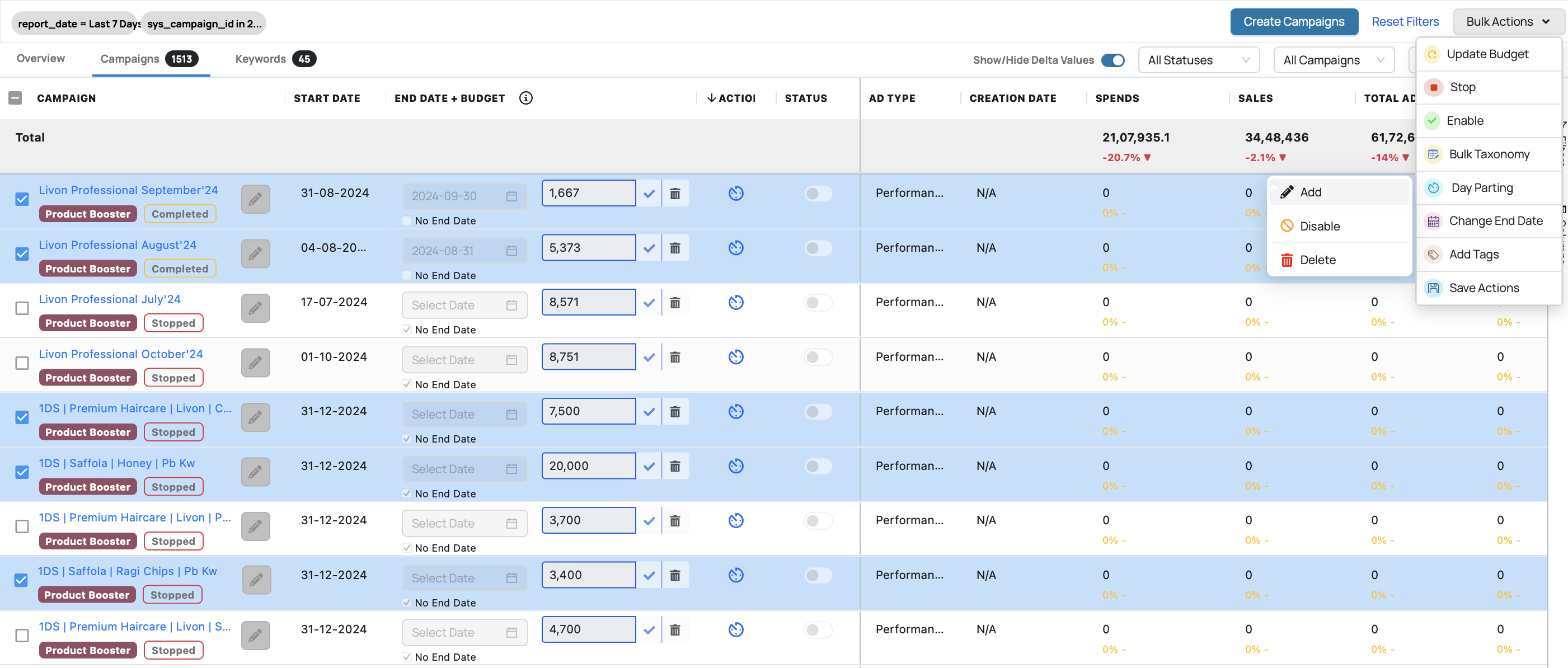
- Configure pause windows for each day
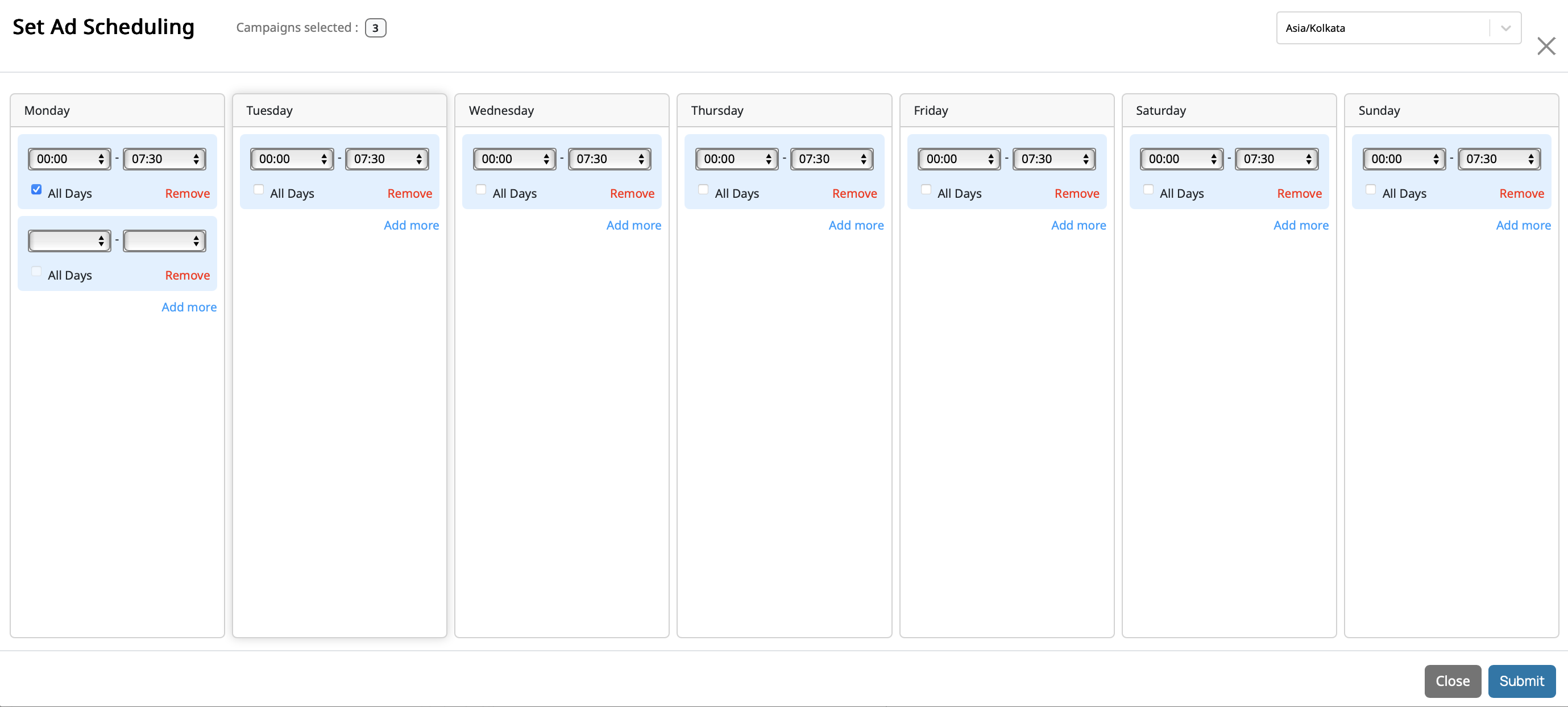
- Click Submit to activate the schedule.
📌 All schedules follow the timezone selected in the top-right corner of the configuration window.
Configuration controls
- All Days copies the selected pause window across all seven days
- Add More lets you stack multiple pause windows within the same day
- Remove clears Day Parting for that specific day of the week
Reading the status at a glance
The Actions column on the Campaigns tab shows you what's happening with each campaign:
| Icon color | What it means |
|---|---|
| Grey | No Day Parting applied |
| Blue | Active. Campaign is currently in its running window |
| Green | Active. Campaign is currently in its paused window |
| Red | Day Parting is disabled for this campaign |
Edge cases and troubleshooting
If you manually stop a campaign - Permanent override
If a campaign is manually stopped from either Reviniti or the marketplace platform, Day Parting treats that as an intentional override and will not restart the campaign automatically.
To return control to Day Parting:
- Manually restart the campaign
- Wait for the next sync cycle
If you manually restart a campaign during a pause window - Temporary override
If Day Parting pauses a campaign and you manually turn it back on during the configured pause window, the system treats that as a temporary override. The campaign will continue running for the remainder of the day, and the schedule will resume normally the following day.
If you disable or delete a rule while campaigns are paused - No automatic change
Removing a rule does not automatically restart campaigns. Campaigns remain in whatever state they were in when the rule was removed.
If you only want to change timings, edit the existing rule instead of deleting it.
If you apply Day Parting to an already stopped campaign - Manual restart required
Day Parting can only resume campaigns that it paused itself. If a campaign was already stopped before the schedule was applied, you must manually restart it first.
Best practices
- Use Day Parting after identifying low-conversion hours
- Avoid deleting schedules while campaigns are paused
- Prefer editing schedules instead of recreating them
- Double-check pause windows before submission
- Keep the 30-minute sync delay in mind while testing changes
Changes that won’t affect existing schedules
- Budget updates
- Campaign end-date changes
- Bulk taxonomy updates
- Tag updates
- Keyword-level automations or rules
- Creating new campaigns
- Deleting unrelated campaigns
- Applying or editing Day Parting on different campaigns