
💻 Bulk Create Campaigns [Blinkit Beta]
Guided flow for creating multiple Blinkit ad campaigns in a single pass with Market Share, SOV, Availability, and Ranking data built into every step.
Overview
Bulk Campaign Creation (BCC) is 1DS's guided flow for creating multiple ad campaigns at once. Instead of setting up campaigns one-by-one on native channel ad portals, BCC lets you generate as many campaigns as needed in a single automated flow with flexibility across products, keyword types, budgets, cities, cohorts, and time slots.
What makes BCC different is that it brings data intelligence into the creation process. Unlike traditional ad portals that only let you pick products and keywords, BCC surfaces the performance metrics that matter while you build. So, every decision is backed by insight, not guesswork.
For example:
- Pick keywords based on Paid SOV, Organic SOV, and Current Ranking, not just search volume
- Allocate budgets after seeing each city's contribution, market share, availability, and SOV, not by spreading spend blindly
📌 Channel availability: BCC currently supports Blinkit only (beta). Support for additional channels will roll out in future releases.
Key Benefits
|
✅ Create Multiple Campaigns in One Go Generate many campaigns at once across products, keyword types, cities, cohorts, and time slots, no repeated manual setup. |
📊 Data-Backed Campaign Decisions Get access to critical metrics like Market Share, Availability, Paid & Organic SOV, and Rankings while setting up campaigns — insights you won't find on native channel ad portals. |
🗃️ Build and Use Product Clusters Group SKUs into clusters and apply consistent campaign logic across all of them for easier management and reporting. |
|
📍 Flexible Location Targeting Choose cities, regions, tiers, or create your own custom cohorts to target multiple geographies with a unified setup. |
🧠 Smart Recommendations Use Auto-Suggest Bids and Auto-Suggest Budgets to quickly apply data-backed values and reduce guesswork. |
🛠️ Single or Multiple Campaign Generation Run all keyword types in one campaign or automatically split them into multiple campaigns based on your selections. |
How to Use BCC
To start creating campaigns with the BCC module, navigate to:
Activation → Campaign Manager → Create Campaign
Link: https://app.1digitalstack.ai/activation/performance-overview/campaigns
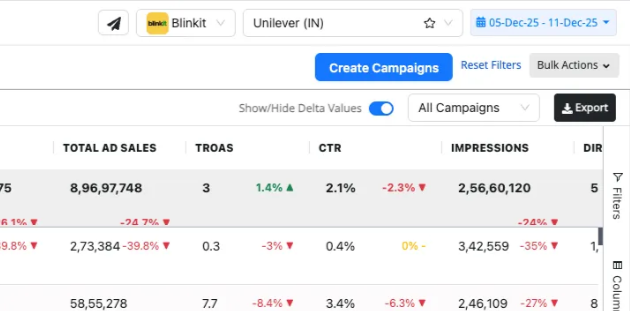
If you are an authorised user, you'll see a Create Campaign primary action button. Clicking it opens the complete guided Bulk Campaign Creation flow, where you move step-by-step from selecting products to generating fully configured campaigns.
Step-by-Step Guide
Step 2: Select Clusters or Products
Step 3: Configure Campaign Collections
Step 4: Define Campaign Row Attributes