
💻 BBC Step 5: Add Individual Campaign Budgets
Single Campaigns :
When you create a Single Campaign, the system will create one Campaign with All the selections. You can directly proceed to Campaign Review screen.
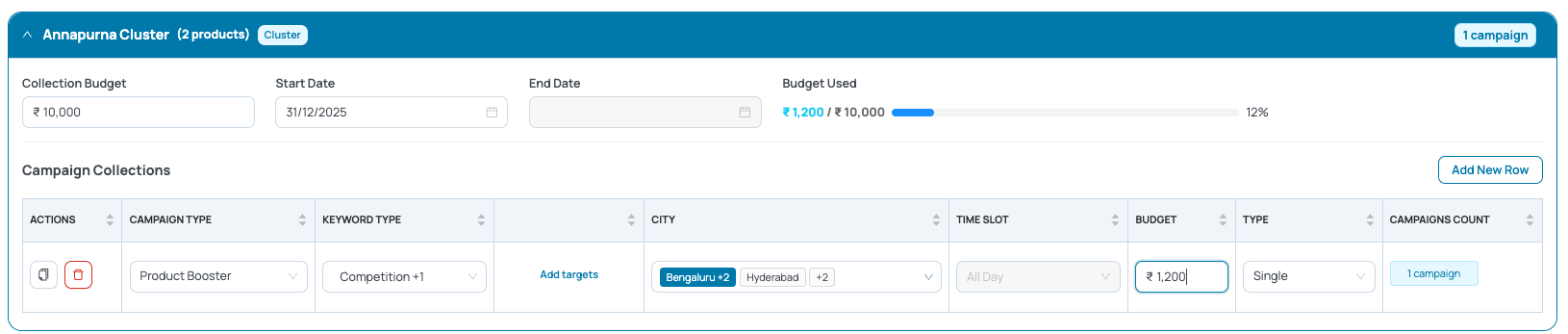
Multiple Campaigns :
When you choose Multiple Campaigns, the system automatically generates separate campaigns for every combination of Ad Type (Branded / Generic / Competition) × City Group Selection x Time Slot
5.1 Review Auto-Generated Campaign Combinations
Based on your inputs in Step 4, the system creates a matrix of campaigns using combinations of:
- Keyword Types
- City + Cohorts
- Time slots
Clicking on (+) Next to campaign count will expand the row and show you all campaigns that will be created
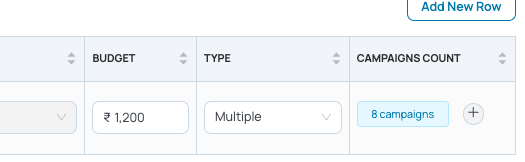
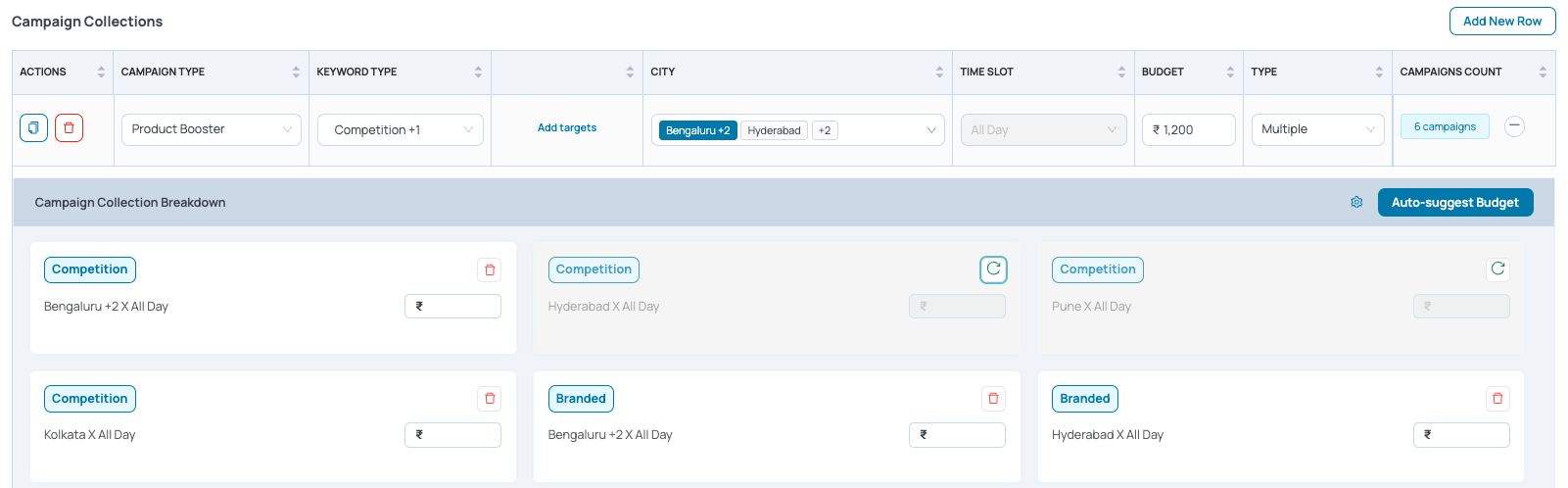
5.2 Select / Deselect Campaign Combinations
It might be possible that some of the created combinations are not relevant for the campaign creation activity. In that case you can click on the “delete” icon to temporarily disable some campaigns
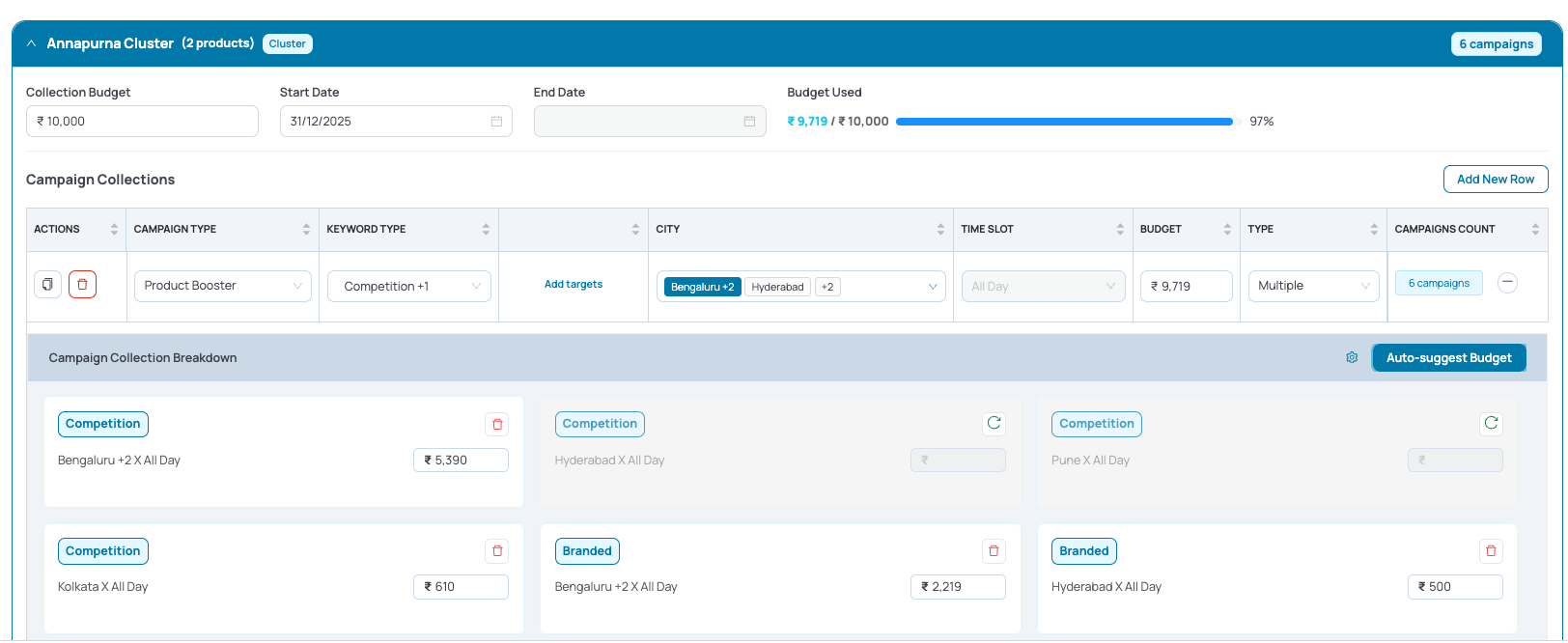
5.3 Auto Suggest Campaign-Level Budgets
Once you have enabled only the relevant campaigns - Use Auto-Suggest Budget to split the row budget intelligently - Calculates distribution using offtake-based weighting and automatically assigns daily budgets
Note : You can modify budgets for each campaign individually to match your strategy.
5.4 Validate Campaign Counts & Budget Splits
Before , review:
- Total campaigns generated
- Budget per campaign
- Total Spend
- Keywords included
- Cohorts covered
Once all campaigns are confirmed: Click Next → Create Campaigns to see the last consolidated summary before launching your campaigns
Notes:
- Every generated campaign requires a minimum of Rs. 500 per combination, if the min value is not reached, budget automates to Rs.500
- Row level budget must have value for Auto-Suggest Budget to work